
Troubleshooting assistant
An issue? Let's fix it together.
Pick your problem and answer a few questions: the assistant takes you to the solution, step by step. Nothing worked? It prepares your message to support with everything you've already tried.
Learn LWA Light, on your own or with us
At your own pace
The full manual explains every tool step by step, and the video tutorials show everything in action: assistant, colors, moving heads, big effects, audio live, Show Manager.
With us
We can train your users, and even help you install your rig and set up the software for your fixed equipment: venue, theater, village hall, club. Free quote on request.
Want to talk with other users? Join the LWA Light community on Discord: help from other users, shared presets and fixtures, early news.
It looks like:
Nothing found with those words. Pick a family below, or try other words.
Not it? Other leads:
What's new in version 5.9
Where are you stuck?
Movements and Dimming are in the Moving head manager
Both tools are combined in the Moving head manager (home tile), in four sections at the top of the tool: Dimming (dimmer and color to the tempo), Movement / Position, Movement + Dimming and Sequences. In each section: Ready-made presets or Create / edit step by step. The effects of your old shows stay in the console and still work.
All fixed?
Positions that no longer aim at the right spot
Presets and your creations keep their shape and adapt to the XY PAD zone: the moving head takes the way of aiming that stays inside the zone.
- Install version 5.9 (an earlier version cut the position at the edge of the zone).
- Set the XY PAD limits to the real end stops of your moving heads (fixtures connected).
- Place your moving heads in LWA Vision as they are rigged, then Send to 3D simulator (see the next solution).
- Reopen the Moving head manager: the preview realigns; if needed adjust the aim point with Fine adjustment (all moving heads, front, back or a single one), then Update the show.
All fixed?
A moving head doesn't aim like in reality
- Open LWA Vision (👁 VISION button), Place mode.
- Click the moving head, then Rotate: set it as in reality (on the floor, upside down, sideways on a truss leg).
- Save, then Send to 3D simulator: the software, the tools and the simulator take the same orientation.
- In the Moving head manager, replay the preset: the moving head aims at the right point. If the direction is reversed on a single moving head, use the ⇄ button of the XY PAD to invert its pan or tilt.
All fixed?
The LED ring stays off or flickers
- LED ring tool: choose the moving heads, the effect and its colors, then Create the ANNEAU LED frame.
- If the ring stays off or flickers: home, Fixture settings, your model: set Ring dimmer and Ring strobe ("open" value), then send the tool again.
- Only the ring changes: the beam, the position and the gobos don't move, that's normal.
- Washes whose whole face is LED (Big Bee Eyes, B-Eye) are controlled with the Zone washes tool, not the LED ring.
All fixed?
The zone washes do nothing
- The wash must be in a zone (pixel) mode: Fixtures tab, check the mode, and the same mode on the fixture.
- Zone washes tool: choose the washes, the effect and its colors, then Create the ZONES frame. In the console, the TÊTES MOBILES À ZONES frame opens with the ZONES shortcut.
- The effect opens the master dimmer and the shutter: if nothing comes out, raise the frame's level fader and the master.
All fixed?
The sparks don't fire
- It's on purpose: nothing fires without ARMER (ÉTINCELLES SÉCURITÉ frame, ÉTINCELLES tab). Arm, wait for the machine to preheat, then launch the pattern.
- STOP ÉTINCELLES cuts everything: re-arm afterwards.
- Audio live never triggers sparks; a big effect with a SPARKS track also waits until you have armed.
- Check the DMX address of the machine and its mode (often 2 channels).
All fixed?
A track of the big effect does nothing
- Each track acts on its fixtures: tap the track, then Track fixtures and tick the ones that should play.
- An empty box = the show's color or position keeps control on that track.
- SPARKS track: nothing without ARMER (safety).
- In the tool, Send to DMX plays the effect on your real fixtures; in the console, raise the level fader of the GROS EFFETS frame.
All fixed?
The matrix doesn't light whole bars
- For whole bars (one bar = one fixture), take the presets of the Bars family in the LED matrices tool (bar-by-bar chase, fill…).
- Check the order of the fixtures (step 1) and the shape (in a row, in a column, in a grid).
- Nothing lights up: Open dimmer / shutter option in step 2, and the frame's intensity fader.
All fixed?
A frame is not on the right tab
- In "one page per task", each frame goes on the tab of the fixtures it really controls (spots on LYRES SPOT, washes on LYRES WASH, PARs on PAR…).
- A misplaced frame: click ⟳ MAJ CONSOLE, the console is rebuilt for the chosen layout.
- Change the layout: menu (☰), Console layout (all on one page or one page per task).
- A frame moved by hand into a tab stays there.
All fixed?
The Quick controls faders are badly arranged
Reopen Quick controls and send the frame again (Create in the show): the faders stick back together in their order, the TEMPO GÉNÉRAL goes after them, and the frame tightens. Your MIDI assignments are kept.
All fixed?
AUTO TEMPO doesn't find the tempo
- AUTO TEMPO listens to the same sound input as audio live: choose it in Audio live (microphone or mixer output).
- It needs a few bars of rhythmic music; on a calm song or one without drums, tap the tempo by hand.
- A manual TAP takes back control; press AUTO TEMPO again to restart listening.
All fixed?
My old show doesn't have the new features
- Open the show in version 5.9: it opens without losing anything.
- Click ⟳ MAJ CONSOLE: the tool frames get the new features, your tweaks are kept.
- For the new tools (LED ring, Zone washes, Sparks, LED matrices), open them from the home screen and create their frames.
All fixed?
How do I do it?
What would you like to do?
Add my fixtures
How would you like to do it?
Adding your fixtures with the Wizard
- Home screen, Wizard (or the WIZARD button at the top of the console).
- Step 1: search for the model (“par 64”, “spot 60”), click it.
- Choose the mode (the number of channels set on the fixture), the number, the role (already suggested from the definition) and the place on stage, then + ADD. The addresses follow on by themselves.
- Repeat for each model, then Next: the Wizard builds the console (colors, effects, movements, desk).
- Printable PDF gives the addressing plan to set on the fixtures.
On video: Adding your fixtures.
All fixed?
Add a fixture by hand
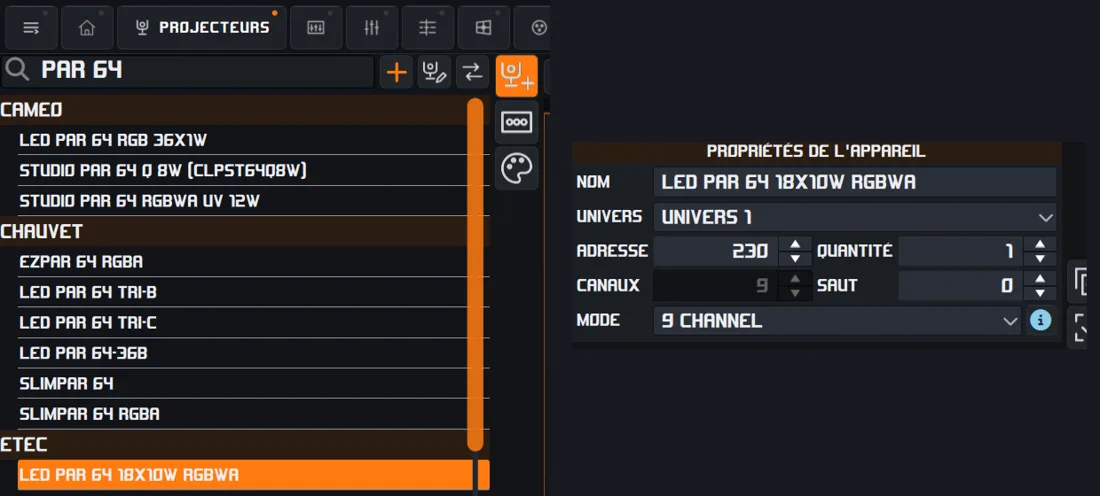
- Fixtures tab, Add Fixtures button at the top left (the fixture with a +).
- Type the name in the search, click the model.
- At the bottom, Fixture properties: Name, Universe, Address (the first free one is suggested), Quantity, Mode (the same as on the fixture).
- Drag the model onto the 2D plan: it's added. Check in Universe.
- Reopen the Wizard or the tools: they take the new fixture into account.
All fixed?
One fader for several fixtures
The simplest way: the Quick controls tool (home screen tile), + Faders frame, tick DIMMER, choose your fixtures (All, or the moving heads and PARs you want), then Create in show. The tool finds the right channel in each fixture's definition and opens the moving heads' shutters.
To change an existing fader (for example the FRONT fader that only controls the PARs):
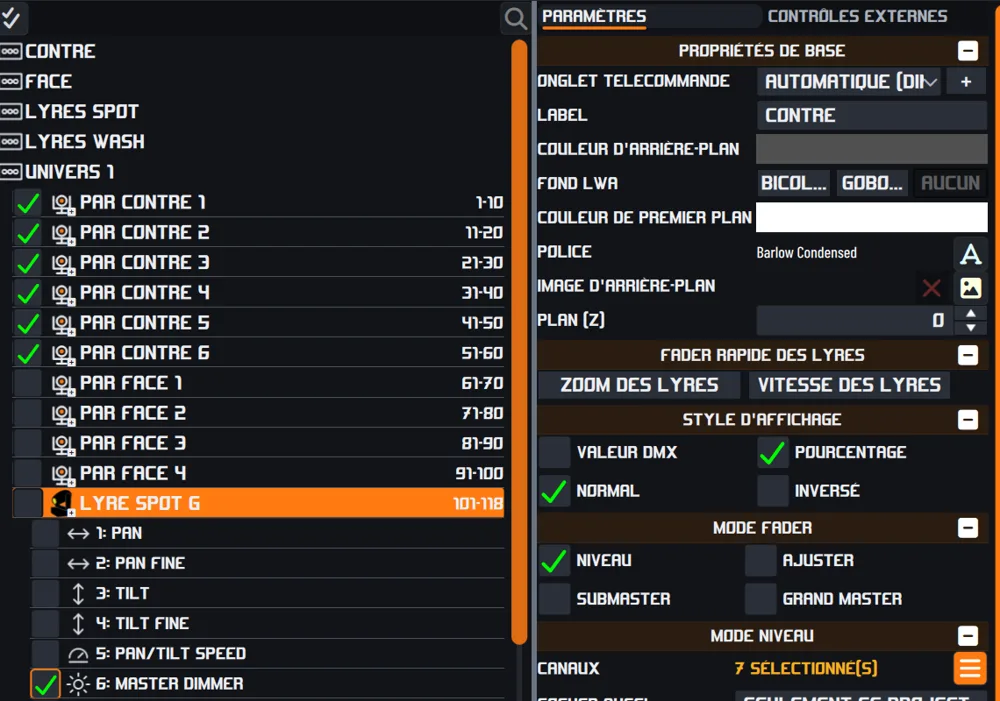
- Console, pencil (edit mode), tap the fader.
- On the right, SLIDER MODE: LEVEL ticked.
- LEVEL MODE, CHANNELS row (“6 selected”): tap the list button on the right. The fixture list opens.
- A tick in front of a fixture takes all its channels. For a dimmer, double-click the fixture's name: its channels appear; tick only DIMMER (or MASTER DIMMER for a moving head).
- To go faster: ALSO TICK set to Same model: the dimmer ticked on one moving head gets ticked on all moving heads of the same model.
- Leave edit mode, raise the fader to test, then Ctrl+S.
A moving head stays dark even though its dimmer is up: its shutter is closed (“My moving head moves but stays dark” button).
All fixed?
Add a button, a fader or a frame
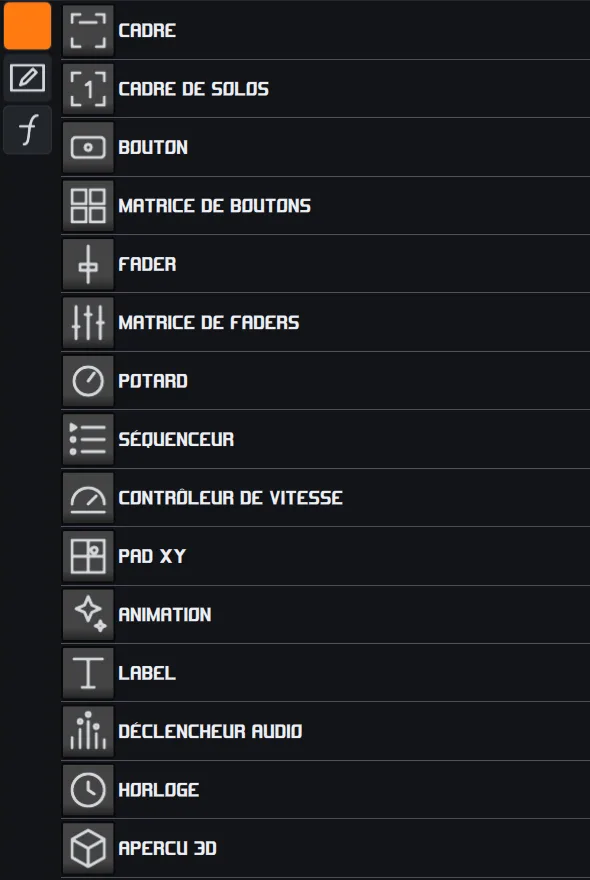
- Console, pencil (edit mode).
- The + on the right opens the list: FRAME, SOLO FRAME (only one button on at a time, for colors), BUTTON, SLIDER, KNOB, CUE LIST, XY PAD, LABEL, CLOCK, 3D PREVIEW…
- Drag the item into the console, into a frame or next to one.
- Tap it: its settings appear on the right (SETTINGS tab).
- To copy an item: the copy icon in the right-hand bar (or Ctrl+C then Ctrl+V); the bin deletes it. Ctrl+Z undoes.
All fixed?
Link a button to an effect
- Console, pencil (edit mode).
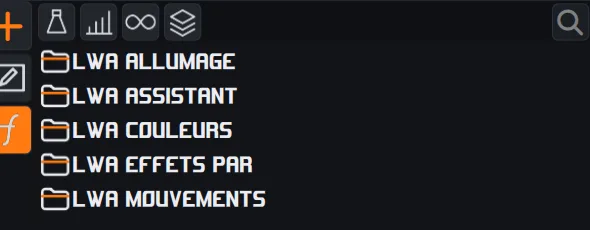
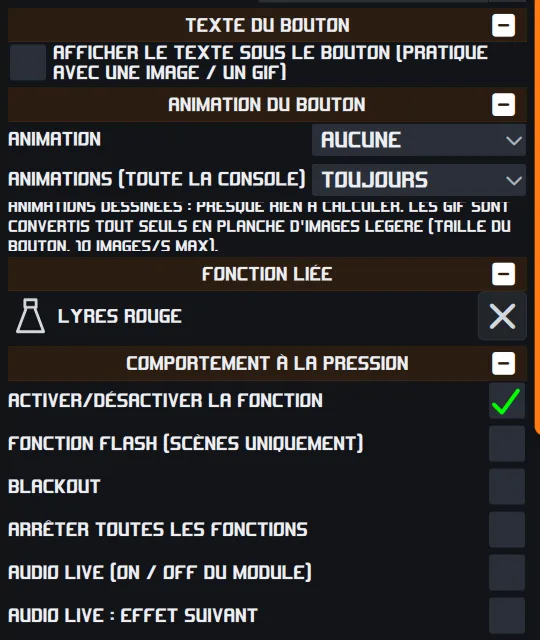
- The f in the right-hand bar opens the function list, sorted into folders (LWA Couleurs, LWA Effets PAR, LWA Mouvements…).
- Drag the function you want onto the button. It appears in ATTACHED FUNCTION (the cross removes it).
- PRESSURE BEHAVIOUR: Toggle Function on/off (one press turns it on, another turns it off), Flash Function (only while held, scenes only), Toggle Blackout, Stop all Functions, Audio Live…
- Leave edit mode, try it, Ctrl+S.
Even simpler: the LWA tools create their buttons by themselves with Create in show.
All fixed?
Change a button's name or color
- Console, pencil, tap the button (or the fader, the frame).
- SETTINGS, BASIC PROPERTIES: LABEL = the text shown; BACKGROUND COLOR and FOREGROUND COLOR (text); FONT; BACKGROUND IMAGE (an image or a GIF).
- BUTTON ANIMATION: an effect while it's on (breathes, blinks…).
All fixed?
Create a new effect or color
- On the home screen, one tile per tool: Colors, PAR FX, Movements, Head Lighting, Big FX, Gobos / prism / zoom, Quick controls.
- In the tool: start from a preset (Add preset) or from New, choose the fixtures, adjust; the preview plays on your fixtures.
- Create in show puts the effect in the console, with its buttons. Running it again updates it without duplicates, even mid-show.
- Save as preset keeps it for all your shows.
All the tools on video: tutorials.
All fixed?
Add a page to the console
- Console, pencil (edit mode), tap an empty spot on the page (nothing selected).
- On the right: Add page to the left or Add page to the right; Delete this page removes it.
- Pages are picked with their tabs at the top of the console. Rename them to find your way around.
- In a frame, Enable pages gives the frame itself several pages (handy with a MIDI controller).
All fixed?
Control the console with a MIDI controller
- Connect the controller, then start the software.
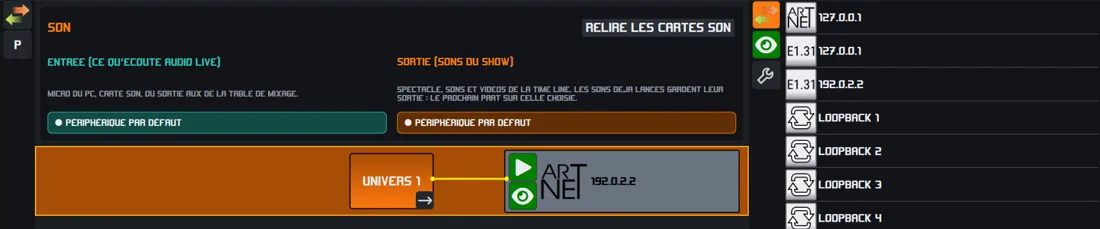
- Inputs / outputs tab, tap universe 1, left arrows button: drag the controller onto the left side of the universe.
- P button: drag its profile (if it's in the list) onto the input.
- Console, pencil, tap a button, EXTERNAL CONTROLS tab, the plug with a +: move the control on the controller and it's linked.
- F button under the universe to light up the controller's LEDs. Ctrl+S.
All fixed?
Prepare tonight's show
- When the show opens, the Today's rig window lists your fixtures by type (or the RIG button in the top bar).
- Tap a fixture to mark it absent tonight: the nearest fixture of the same model takes over. All / None set a whole family.
- The effects follow on their own, nothing to reprogram. Save the configuration if it comes up often.
- Moving heads rigged differently: check the XY pad limits.
On video: Today's rig.
All fixed?
Program by hand (scene, chaser)
- Main menu, Classic functions (scene, chaser, sequence…): hidden: one click shows them.
- Fixtures tab, functions button, Add a function: Scene (fixed values), Chaser (steps one after another), Sequence, Collection, EFX, RGB Matrix…
- Scene: add the fixtures, enable the channels to hold, set the values.
- Link it to a console button (“Link a button to an effect” button).
The full manual (PDF), chapter 14, details every function.
All fixed?
No light
What exactly is happening?
The light goes out for a few seconds
Are you using the trial version (no licence activated yet)?
Nothing lights up
In the Inputs / outputs tab, is there a yellow wire linking universe 1 to your DMX interface?
Connect the interface to the universe
- Open the INPUTS / OUTPUTS tab (the last tab on the left of the top bar, before the photo button).
- Tap Universe 1: it gets an orange outline.
- On the right, the arrows button opens the list of outputs. Is your interface there (DMX USB, brand name, FTDI…)?
Drag the interface onto the universe
- Drag the interface from the list to the right side of the universe.
- A yellow wire links them: DMX goes out right away.
- Save the show (Ctrl+S): the output is kept for next time.
On video: Inputs / outputs tutorial. Still no light? Let's test the fixture itself.
All fixed?
The interface doesn't appear
Which system are you on?
Interface not showing on Windows
- Unplug the interface, wait 5 seconds, plug it into another USB port (not an unpowered hub). It's detected on the fly, no need to restart the software.
- A minute after first plugging it in, Windows installs its driver. Open Device Manager (right-click the Start menu): the interface should appear under “Universal Serial Bus controllers” or “Ports (COM & LPT)”, with no yellow triangle.
- Yellow triangle or “Unknown device”: install the FTDI D2XX driver from ftdichip.com (most Enttec, Eurolite, DMXKing… interfaces use an FTDI chip), then plug it back in.
- Close other lighting software (Freestyler, DMXControl…): an interface can only serve one program at a time.
Interfaces using the “USB Pro” protocol and those with an FTDI chip are recognized. Not sure about your model: Hardware page.
All fixed?
Interface not showing on Mac
- Unplug the interface, wait 5 seconds, plug it back directly into the Mac (avoid unpowered hubs; with a USB-C adapter, try another one).
- Apple menu, About This Mac, More Info, System Report, USB: the interface should appear there. If not, it's the cable, the adapter or the interface.
- Interfaces with an FTDI chip work without a driver. Don't install an old FTDI “VCP” driver: it can block the direct access the software needs.
- Close other lighting software: an interface can only be used by one program at a time.
All fixed?
The interface blinks, but no fixture responds
The software is sending data, but the interface doesn't understand it: it was taken for another model. This often happens on a Mac with the Enttec DMX USB Pro, which shows up there under its chip's name, FT245R.
- Inputs / outputs tab: tap the output connected to the universe and look at its name (for example "FT245R USB FIFO" instead of "DMX USB PRO").
- Wrench (Open the plugin configuration): the DMX USB window lists your interfaces.
- On your interface's line, choose the Pro RX/TX type for an Enttec Pro or a "USB Pro" interface (Open TX for a simple Open DMX-type interface), then close the window.
- Unplug and replug the interface, check that the yellow wire still connects the universe to the output, then save the show (Ctrl+S).
Recent versions automatically recognise an Enttec Pro that announces itself as "FT245R". The setting is kept for this interface.
All fixed?
Interface not showing on Linux
Just once, allow access to USB DMX interfaces with this command in a terminal, then unplug and replug the interface:
sudo wget -O /etc/udev/rules.d/z65-lwa-dmxusb.rules https://lwa-light.fr/linux/z65-lwa-dmxusb.rules && sudo udevadm control --reload-rules && sudo udevadm trigger
The lsusb command should list the interface (Future Technology Devices, Enttec…). If not, change the cable or port. Details: Linux installation.
All fixed?
Test the fixture
- Open the Simple desk tab: one fader per DMX channel, and at the bottom the list of fixtures with their addresses.
- Raise a fixture's dimmer fader (often its first channel), then a color's fader (red).
The fixture doesn't respond
On the fixture's display or DIP switches, do the address and mode match the software (Fixtures tab, Universe view)?
Check the address and mode
- In the software, Fixtures tab, Universe button: each fixture shows its start address (the box where its name begins).
- On the fixture, menu (often dMX, Addr or A001): type the same address. PAR without a display: the main menu's Addressing tool shows which DIP switches to set to ON.
- Still in the fixture's menu, the mode (7CH, 9CH…) must have the same number of channels as in the software: the Universe grid shows how many boxes it takes up. To change the mode in the software: “Change a fixture's address or mode” button below.
- Check that it's really in DMX mode, not in auto, sound or master / slave mode.
The Adding your fixtures tutorial shows it on video.
All fixed?
Check the DMX line
- 3-pin or 5-pin DMX cable (a cheap mic cable may not work on a long run).
- The line runs from the interface to the first fixture (DMX IN), then from each one's DMX OUT to the next one's DMX IN. No “Y” without a splitter.
- A terminator (120 Ω between pins 2 and 3) on the last fixture's DMX OUT.
- Test with a single fixture and a single short cable: if it works, add the others one by one to find the faulty link.
- An interface with an LED: it should blink when you move a fader. If not, go back to the Inputs / outputs tab (yellow wire).
All fixed?
The fixture works, but not from the console
DMX is going out: it's a console setting that's blocking it.
- Group faders (BACK, FRONT, MOVING HEADS…) at the top: they are dimmers. At zero, their fixtures stay dark.
- FADE engaged in the top bar (it shows FADE IN): press it once and the light comes back.
- Fixture marked absent tonight: the RIG button shows, for example, 7/8. Tap RIG and mark it present again.
- PAR under dimmer or Moving heads under dimmer button on (Desk frame): effects stay under the group fader. Raise the fader or turn the button off.
- Inputs / outputs tab, on the connected output: the playback button must be playing (not paused), and the eye must not be in blackout. The right-hand panel also has a blackout for all outputs.
- Reset the Simple desk faders to zero (cross under each fader): they can override the console.
All fixed?
Only some fixtures
Which ones stay dark?
A whole model doesn't respond
- The channel mode set on these fixtures isn't the one in the software: compare the number of channels (Mode property).
- Their definition isn't the right version: look for another definition of the same model in the library, or write to us with the manual (Contact page).
- Moving heads: the dimmer responds but the shutter stays closed: in the PAR FX or Big FX tool, Fixture settings (for the whole effect), give the shutter channel a fixed open value.
- “Fixture definitions missing on this PC” banner when opening the show: button below.
- “Duplicate fixture files on this PC” banner: delete the old file (see “Fixtures and colours”).
All fixed?
Fixtures on universe 2
- One universe = 512 channels. Fixtures beyond that are on universe 2, which needs its own output.
- Inputs / outputs tab: tap Universe 2 and drag an output onto it (your interface's 2nd output, or a 2nd Art-Net universe).
- With a single-output interface: readdress everything to fit into 512 channels (1-9 arrow in the view bar: Reorder and readdress fixtures).
All fixed?
Flickering, blinking or freezing
- A 120 Ω terminator on the last fixture: it's the number 1 cause of flickering.
- Cables: one mic cable or damaged cable in the chain is enough. Test by swapping one cable at a time.
- Interface without galvanic isolation near a power supply or a dimmer: an isolated “USB Pro” interface is more stable during a gig.
- Windows: turn off USB power saving (Device Manager, Universal Serial Bus controllers, each “USB Root Hub”, Power Management tab, untick “Allow the computer to turn off this device to save power”). Plug the PC into the mains.
- More than 32 fixtures on one line: add a DMX splitter.
- The light goes out for 5 seconds every 10 minutes and the moving heads freeze, during the trial: that's the demo pause, on purpose (see Licence and trial).
All fixed?
Art-Net or sACN
Is the network node receiving anything (DMX or network LED blinking)?
Nothing reaches the network node
- Inputs / outputs tab: drag Art-Net (or E1.31 for sACN) onto the universe, picking the line that shows the IP address of the network card connected to the node (not 127.0.0.1).
- The PC and the node must be on the same network: for example PC at 2.0.0.10 and node at 2.0.0.20 (mask 255.0.0.0), or both at 192.168.1.x. Set the PC's IP address in the system's network settings.
- Windows: the first time, the firewall asks for network access: Private networks must have been ticked. Otherwise: Windows Firewall, Allow an app through firewall, tick LWA Light Controleur.
- Mac: System Settings, Privacy & Security, Local Network: allow LWA Light Controleur.
- Wi-Fi: avoid it for Art-Net during a show; a direct network cable or a switch is far more reliable.
All fixed?
The node receives, the fixtures don't
- Wrench in the Inputs / outputs tab (Open the plugin configuration).
- Art-Net: the ArtNet Universe column must be the universe number set in the node. Many nodes count from 0, others from 1: try 0, then 1. IP Address: leave the broadcast address (ending in .255), or type the node's exact address.
- sACN (E1.31): the E1.31 Universe column starts at 1; set the same number as the node. Leave Multicast ticked, unless the node requires a specific address.
- Then check each fixture's address and mode, as with a USB interface.
All fixed?
Install and launch
Where are you stuck?
Windows blocks the installation
- Browser: “isn't commonly downloaded”: click the … next to the file, Keep, then Show more and Keep anyway (Edge). Chrome: Keep.
- On opening, “Windows protected your PC”: More info, then Run anyway.
- On first launch, the firewall asks for network access: tick Private networks and click Allow access (Art-Net, sACN, remote).
- An antivirus puts the file in quarantine: restore it and add an exception. Always download from lwa-light.fr.
This is not a virus: Windows warns for any software that does not have a signing certificate yet. Microsoft signing is in progress: this message will disappear soon. Windows installation guide.
All fixed?
Mac: the software is blocked
Since version 5.8.1, the Mac app is signed and verified by Apple: it opens directly (macOS only asks « Open? »). Still blocked? You probably have an older version: install the latest one. Otherwise:
- Open LWA Light Controleur from Applications; when the message appears, click Done (or OK).
- System Settings, Privacy & Security, at the very bottom: Open Anyway, then confirm with your password or Touch ID. On macOS 13 and 14, right-clicking the app and choosing Open also works.
- “The application is damaged” message: open Terminal (Applications, Utilities), paste the line below, then relaunch:
xattr -cr "/Applications/LWA Light Controleur.app"
Then allow local network and microphone access if the Mac asks. Mac installation guide.
All fixed?
Which version for my Mac?
- Apple menu, About This Mac.
- “Chip Apple M1, M2, M3, M4…”: get the Apple Silicon version.
- “Processor Intel”: get the Mac Intel version.
- You need macOS 13 Ventura or later.
All fixed?
Linux: the AppImage won't open
- Right-click the file, Properties, Permissions: tick Allow executing file as program.
- Nothing opens on double-click: install FUSE once in a terminal,
sudo apt install libfuse2(Ubuntu 24.04 and Mint 22:sudo apt install libfuse2t64). - Launch it from a terminal (
./LWA_Light_Controleur-…-x86_64.AppImage) to see the error message, and send it to us if it's still stuck.
All fixed?
The software won't open or crashes on launch
- Update the graphics card driver (Intel, AMD or NVIDIA website, or Windows Update, optional updates). The software needs OpenGL 3.3.
- Laptop with two graphics cards: Windows Settings, System, Display, Graphics: choose LWA Light Controleur, High performance.
- Remote desktop, virtual machine or very old PC: 3D may not be available. Try on the computer itself.
- It opens but lags: switch to Eco: on and Anim: none at the top of the console.
System requirements: Download page. Still stuck: write to us and attach the log. It's in the LWA Light Controleur / Journal folder: on Windows, type %LOCALAPPDATA%\LWA Light Controleur\Journal in the File Explorer address bar; on Mac, Finder, Go, Go to Folder, ~/Library/Application Support/LWA Light Controleur/Journal; on Linux, ~/.local/share/LWA Light Controleur/Journal.
All fixed?
The software closed unexpectedly
- Reopen the software: it automatically reopens the last saved show and puts the console back the way it was (faders, current colors), so the stage doesn't stay dark.
- Changes weren't saved? A banner offers Use the copy: tap it, then Ctrl+S. No banner: “Recover my work” button below.
- Click the orange banner: it opens the log folder. Send us the journal-precedent.log file from the Contact page (type “A bug or a problem”), along with what you were doing when it crashed. We fix things fast.
All fixed?
Fixtures and colors
What's the issue?
Fixture missing from the library
- Search differently: just the model (“18x10”, “spot 60”), or the original brand (many fixtures are sold under several names).
- See the list of compatible fixtures.
- Create the definition yourself: Wizard, step 1, Create a definition. A 4-step guide, with the manual open at the DMX table page.
- Or send us the manual (Contact page, “A missing fixture”): we'll create the definition.
All fixed?
The colors are wrong
- First check the fixture's mode: its number of channels must match the software. A wrong mode shifts all the colors.
- Colors tool, Channels button next to the fixture: say which channel is red, green, blue, white, amber.
- A PAR that stays on a fixed color or blinks: it may be in macro or auto mode. Set its macro channels back to 0 (Fixed values in PAR FX).
All fixed?
Moving head with no color or gobo buttons
- Its definition doesn't describe the wheel. Open the definition editor (Wizard, step 1, or the pencil next to the search) on this model.
- Color wheel, gobos, prism step: choose the Channel and the Width of a range (from the manual), then tap the colors in the wheel's order. Same with + Gobo, + Prism.
- Save these ranges, then Save definition.
- Reopen the Wizard or the Colors tool: the buttons appear. Colors are also recognized by their name (Red, Light blue…).
All fixed?
The moving head moves but stays dark
- Raise the MOVING HEADS (or DIMMERS) group fader: it acts as a dimmer.
- Many moving heads keep the shutter closed at 0. The tools open it along with a color; otherwise, in the PAR FX or Big FX tool, Fixture settings (for the whole effect): a fixed open value on the shutter channel.
- Discharge lamp: some need a lamp strike (“lamp on”) via a control channel: see the manual.
- The Moving heads under dimmer button in the Desk frame is on: raise the fader or turn the button off.
All fixed?
The moving head doesn't move
- Start a movement (MOVING HEAD MOVEMENTS frame in the console): with no movement running, the moving head stays where it is.
- XY pad: if its limits are very tight, movements become tiny. Widen them.
- Pan / tilt speed channel: on many moving heads, 255 = slowest. The Moving head speed fader (Moving head quick fader) or P/T SPEED in Quick controls sets them back to fast.
- “Your definitions are missing info” banner in the tools: the definition doesn't say where pan and tilt are. Complete it.
- On the moving head: DMX mode (not sound or auto mode), the right channel mode, and no motor lock (“pan/tilt lock”, “Reset”).
All fixed?
A moving head goes the wrong way or points at the audience
- Movements tool, Moving head mounting section: Mirror left / right, Mirror up / down, Pan reversed (mounting), Tilt reversed (upside down). The setting applies to all effects.
- Beams into the audience or onto the ceiling: in the console, the XY pad: set its limits. All movements stay restricted within them.
- Moving heads moved since last time: check the XY pad limits again.
All fixed?
“Your definitions are missing info”
This banner appears in the Big FX and PAR FX tools when a fixture's definition doesn't say where its dimmer, its colors, its color wheel or white ranges, or its pan / tilt channels are. Click Complete the definition: the editor opens on the right definition. Give the role of the missing channel (Quick creation step) or the wheel ranges (Color wheel, gobos, prism step), Save definition, then reopen the tool.
All fixed?
“Duplicate fixture files on this PC”
Two fixture files describe the same brand and model (a copy, an old version you redid). Before, the software could pick the wrong one: shifted channels, a moving head moving on its own, one fixture's colour making another react, Fixture settings with no channels, very slow tools. Now it uses the most recent one everywhere, and the banner tells you which one to delete.
- Read the banner: it names both files.
- Menu, Import fixture files (.qxf), choose the right file: it is installed, and the other file for the same model is set aside automatically (nothing is deleted).
- Restart the software and reopen the show: the banner no longer appears.
- Then check the mode of these fixtures (button below): the old file may not have had the same number of channels. A show made with the wrong file can keep wrong addresses: redo the addressing (Reorder and readdress), or make a new show with the wizard.
All fixed?
Add a fixture file (.qxf) you received or downloaded
- Main menu, Import fixture files (.qxf).
- Choose the .qxf file(s) (a file sent by a colleague, made on another PC, downloaded): they are installed on this PC and usable right away, without restarting.
- An old file for the same model was already there: it is set aside automatically (nothing is deleted), the new one is used everywhere.
- Then add the fixture (wizard step 1, or Fixtures) choosing the right mode.
- Corrected file for a fixture already in the show: delete the old fixture and add the new one in the same place; when you reopen the tools (Movements, Big effects, Gobos), it takes the old one's place and the XY pad updates on the next send.
All fixed?
Choosing the right mode (number of channels)
The mode = the number of DMX channels the fixture uses (6CH, 10CH, 18CH…). It must be the same in the fixture's menu and in the software: a wrong mode shifts every channel (wrong colours, a moving head flying off, strobe instead of dimmer).
- On the fixture: menu (often CH, Mode, Personality): note the number of channels shown.
- In the software: when adding (wizard step 1, or Fixtures), choose the mode with that number of channels. The fullest one (most channels) gives the most settings in the tools; a small mode (3 or 4 channels) often has no separate dimmer or strobe.
- Got it wrong: Fixtures tab, fixture list, Edit pencil, choose the right mode in the drop-down menu. The following fixtures shift on their own to make room, without changing order (refused only if there is no room left in the universe's 512 channels).
- After a mode change, some fixtures' addresses may have moved: print the DMX addressing plan (PDF) (main menu) and set each fixture as shown.
- Fixtures deleted then added again: Reorder and readdress the fixtures, put them in the order you want (drag), start 1, then Apply.
- Reopen the tool that drives these fixtures (or the wizard) and send again: it reads the new mode.
All fixed?
A moving head moves on its own, a fixture reacts instead of another
Two fixtures use the same DMX channels: when you control one, the other reacts too. When the show opens, a “Overlapping DMX addresses” banner names them.
- One of them has the wrong mode (more channels on the fixture than in the software): fix the mode (button below).
- Or the address set on the fixture is not the software's: compare with the DMX addressing plan (PDF).
- A duplicate fixture file on the PC can also be the cause (“Duplicate fixture files” banner).
All fixed?
Change a fixture's address or mode
- Address: Fixtures tab, Universe button (the channel grid): drag the fixture to its new address. An address already in use is refused.
- To readdress everything at once: 1-9 arrow of the view bar, Reorder and readdress the fixtures (starting at channel 1), then Apply.
- Mode: Fixture groups button on the left (the fixture list), then the Edit the selected item pencil: each fixture's mode is chosen in its drop-down menu; the following fixtures shift on their own if room is needed.
- Set the same address and mode on the fixture, and print the plan: main menu, DMX address plan (PDF).
All fixed?
Console and effects
What's the issue?
A button does nothing
- Edit mode (pencil), tap the button: ATTACHED FUNCTION must show an effect. Empty: drag a function onto it (“Link a button to an effect” button).
- PRESSURE BEHAVIOUR: Flash Function only works with a scene, and only while the button is held.
- The effect is running but can't be seen: group fader at zero, PAR UNDER DIMMER / MOVING HEADS UNDER DIMMER, or another, more recent effect on the same fixtures (color and position follow the last one started).
- In a solo frame, only one button stays on at a time: that's intended.
All fixed?
I can't find my effect
- In the tool, did you click Create in show? Without that, the effect stays in the tool (and in the preview).
- A sent frame is placed above the fine-tuning frames: scroll the console, and look at the other pages (page tabs at the top of the console).
- A saved preset is in the tool, at the top of the list (your presets), not in the console.
- Reopen the tool: your effects are there, with their settings. Running Create in show again updates the existing buttons, without duplicates.
All fixed?
Everything goes dark at once
- FADE in the top bar is engaged (it shows FADE IN): one press brings the light back exactly as it was.
- A FADE OUT / IN button (DESK frame) or the console's BLACKOUT is on: press it again.
- The GENERAL MASTER (Quick controls) is down.
- The light comes back on its own after 5 seconds, during the trial: that's the demo pause.
- Trial over, or a version newer than your updates: DMX output is off. Open menu, Licence: the window tells you why.
All fixed?
An effect doesn't go up to full
- PAR UNDER DIMMER or MOVING HEADS UNDER DIMMER on (DESK frame): the effect stays under the group fader. Raise the fader or turn the button off.
- Group fader (BACK, FRONT…) not at the top.
- Effect fader limited (fader properties: range 0-127): it shows 100 % at the top but only sends half.
- Intensity set low in the tool (effect fine-tuning).
All fixed?
The tempo doesn't follow
- SYNC button in the top bar (it shows CLOCK, MTC or DJ LINK depending on the source): choose who sets the tempo. INTERNAL = you (tap or typed BPM), MIDI CLOCK = Ableton, Logic, Traktor, drum machine, MTC TIMECODE = the show follows the sequencer, PIONEER DJ LINK = networked CDJ / XDJ players.
- Internal: tap TAP 4 times in time.
- MIDI Clock: in the sequencer, enable sending MIDI Clock to the input chosen in SYNC.
- Pro DJ Link: connect the PC to the players' network switch (or to the mixer); nothing to set on the CDJs.
- Audio Live: it finds the BPM on its own from the sound (“Audio Live doesn't react” button in the Console and effects family).
All fixed?
Audio Live doesn't react
- Click AUDIO LIVE (top bar), then ENABLE THE MODULE.
- Check the input: Change input, or Inputs / outputs tab, Input (what Audio Live listens to): PC microphone, sound card, or mixing desk output. Rescan sound cards if you've just plugged it in.
- The level (in dBFS) should move with the music. Too low: raise the sound card gain or the mixing desk output.
- Mac: System Settings, Privacy & Security, Microphone: allow LWA Light Controleur. Windows: Settings, Privacy & security, Microphone: turn on microphone access and “Let desktop apps access your microphone”.
- “ACTIVE · WAITING”: it's waiting for music; it starts as soon as it hears a beat.
All fixed?
Mac: the microphone or network stops working after an update
The Mac keeps permissions for one specific version of the software. After an update, it may think they are still granted when they no longer apply: Audio live hears nothing, or Art-Net, Pro DJ Link and the remote no longer get through.
- First check that the software is in the Applications folder and launched from there (not from the .dmg or Downloads). A banner warns you at launch.
- System Settings, Privacy & Security, Microphone: untick LWA Light Controleur, then tick it again. If it is not in the list, relaunch the software and turn on Audio live: the Mac asks, answer Allow.
- Same thing in Local Network (Art-Net, sACN, Pro DJ Link, remote).
- Quit the software and launch it again.
All fixed?
The software is slow or stutters
- At the top of the console: Eco: on and Anim: none.
- Prefer the 2D view to the 3D simulator during the show; close LWA Vision if you're not using it.
- Laptop: plug it into the mains and set Windows to Best performance mode.
- Close other heavy software (browser with lots of tabs, video editing).
- Recommended specs: 8 GB of memory and a recent graphics card for mapping and LWA Vision.
All fixed?
My changes cut the show
During a show, Create in show and the Wizard apply on the fly: whatever is playing keeps going. If you still see a cut, write to us describing the tool used and what the console was doing. Before installing a new version, check in menu, Licence, that your updates are still running: a version released after they end cuts DMX output.
All fixed?
MIDI controller and remote
What's the issue?
The controller doesn't appear
- Close the software, plug the controller directly into the computer (no hub), then restart.
- Close other MIDI software (DAW, manufacturer's editor): on Windows, a controller can only be used by one program at a time.
- Inputs / outputs tab, tap the universe, left arrows button (inputs): it appears with its name.
- Still nothing: the wrench on the left (Open the plugin configuration), Refresh button.
- Some controllers have a switch or a mode to select (MIDI mode, not HID or DAW mode): see their manual.
All fixed?
The controller doesn't control anything
- It must be linked to the universe: drag it onto the left side of the universe (a yellow wire).
- Touch a control on the controller: the input's activity dot blinks. If not, go back and choose “My controller doesn't appear”.
- Each console button must be linked: edit mode (pencil), tap the button, External Controls, the plug with a +, then move the control on the controller.
- Save the show after mapping (Ctrl+S).
- MIDI Channel (wrench on the left): leave the default setting, or set the channel the controller sends on.
The Inputs / outputs tutorial shows where to connect the controller.
All fixed?
The controller's LEDs stay off
- Inputs / outputs tab: under the universe, the F (feedback) button must be green. Tap it.
- The controller must have a MIDI output with the same name as its input (this is the case for most USB controllers).
- With a profile (P button, dragged onto the input), controllers with colored LEDs show the right colors.
- Some controllers need an initialization message: wrench on the left, Init Message.
All fixed?
Controller not in the list
It still works: plug it in, drag it onto the universe and link each control with the magic wand (External Controls). Controls are shown by their number. To give them names, the + above the profile list (P button) creates a profile. Tell us the model too: we'll add it. List of recognized controllers: Hardware page.
All fixed?
The phone won't connect
- The phone and the PC must be on the same Wi-Fi. No “guest” Wi-Fi: it often isolates devices from each other.
- In the software, PHONE button in the top bar: the window gives the address to open in the phone's browser and a pairing code. The code only works while the window is open (10 minutes at most).
- “This PC isn't connected to any network”: connect the PC to Wi-Fi or to the router.
- Windows: the firewall must allow LWA Light Controleur on private networks, and the Wi-Fi must be set as a private network (not public). Mac: allow Local Network (Privacy & Security).
- No internet box on site: phone hotspot, or a small Wi-Fi router dedicated to the control booth.
All fixed?
Licence and trial
What's the issue?
The trial's demo pause
During the trial, everything is unlocked. After 20 minutes of use, every 10 minutes, the light goes out for 5 seconds and the moving heads freeze, then everything comes back up in 3 seconds and the show resumes. That's normal: a licence removes it right away, no reinstall needed (menu, Licence (trial: … d)..., then Enable). See the plans.
All fixed?
The trial is over
After 30 days, the software opens on the Activate the licence window and no longer controls the light (Quit the software button to close it); your shows are intact: they reopen as they are with a licence. Buy your licence, then menu, Licence..., type the key received by e-mail and Activate. See the plans · licence guide.
All fixed?
“Unknown licence key”
- Copy the key from the email rather than typing it, with no space before or after. It looks like LWA-XXXX-XXXX-XXXX-XXXX.
- A key never contains 0, O, 1 or I: are they 8, Q, 7… misread?
- You have a licence file (.lwalic), not a key: menu, Licence, Import a license file....
All fixed?
“Maximum number of computers”
- A licence can be active on 2 computers at the same time.
- On an old computer: menu, Licence, Deactivate this computer, then Confirm? (with internet). Then activate the new one.
- Old computer broken or stolen: write to us with your key, and we'll free up the computer slot.
All fixed?
“No reply from the license server”
- The computer needs internet just once, for activation: connect it (Wi-Fi, phone hotspot), then click Enable.
- No internet on the control PC: note this computer's code (Licence window), open Activate offline on another device, download the licence file, copy it onto a USB stick, then Import a license file... on the control PC.
- Corporate or town hall network: the firewall may block lwa-light.fr; use offline activation.
All fixed?
“Activated for another computer”
This licence file was made for another computer: it only works on the computer whose code was given. Make it again with this computer's code shown in the Licence window, on Activate offline, or simply activate with the key if this PC has internet.
All fixed?
“This version came out after your updates ended”
Updates are free for one year. This version came out after your period ended: the licence refuses it and DMX output is off. Two solutions: buy the update pack on lwa-light.fr (output comes back right away), or write to us to get the link to the version you had, which stays valid for life. Your shows lose nothing.
All fixed?
I didn't get my key
- Check your junk (spam) folder: the email comes from noreply@lwa-light.fr, “Your LWA Light Controleur licence”. Mark it “Not spam”.
- Log in to your account with the email address used for the purchase: your key is there.
- Still nothing after 30 minutes: write to us with the email address used for the purchase.
All fixed?
Change computers
- On the old one: menu, Licence, Deactivate this computer, then Confirm? (with internet).
- On the new one: install the software (links in your account), menu, Licence, type the key, Enable.
- Copy your shows and your custom definitions (.qxf) onto the new one; your presets are in Documents.
All fixed?
A “Pro plan” padlock
With the Live plan, Mapping and the Soundtrack Show tool are reserved for the Pro plan: the tool opens and shows its preview, but Create in show shows a padlock. Your shows always play in full. To unlock them: Licence window, upgrade to the Pro plan, or buy the tool on its own. See the plans.
All fixed?
“Too many computer changes” or “licence deactivated”
- Too many computer changes: a licence can move to a different computer at most 3 times a month. Wait a few days, or write to us with your key.
- This licence has been deactivated: it was refunded or blocked. Write to us with your key and the email address used for the purchase: we'll look into it right away.
All fixed?
Preset packs
What's the issue?
The pack is refused
- The file must end in .lwapack. Some browsers add .txt: rename it, or download it again.
- Don't open or edit it before importing: a modified file is refused (every pack is signed).
- Download it again from the link in the e-mail or your personal area (the pack of all presets, free: Software page).
All fixed?
Where are the pack's presets?
- The pack's name appears on the home screen after import: it's installed.
- Open the relevant tool (Big FX, PAR FX, Movements or Head Lighting), then Add preset: the pack's presets are listed with the others. A lighting pack only appears in the Head Lighting tool.
- The Wizard offers them too, in the PAR FX, Movements and Lighting steps.
- Nothing? Import it again (the same pack replaces the old one) and reopen the tool.
All fixed?
Didn't get the pack link
- Check your junk folder: the email “Your LWA Light preset pack” comes from noreply@lwa-light.fr.
- Log in to your account with the email address used for the purchase: My preset packs section, Download the pack.
All fixed?
The pack on another computer
The download link works as many times as needed, on all your computers: download the file from your account (or copy it onto a USB stick), then Import a preset pack on the software's home screen. Your shows keep their effects, even on a computer without the pack.
All fixed?
Shows and files
What's the issue?
“Fixture definitions missing on this PC”
- The show uses custom definitions (.qxf) that aren't on this computer. In the meantime, these fixtures work as simple dimmers. Nothing is lost: the show keeps their real model.
- Install the .qxf files on this PC: menu, Import fixture files (.qxf) (several at once), then reopen the show. Or copy them into the same folder as the show.
- Don't have the files at hand: get them from the computer where the show was made (in the show's folder, or in that PC's custom definitions), and copy them with the show.
All fixed?
The show won't open
- Open it from the software (menu, Open) rather than by double-clicking.
- A show opens in all later versions, never the other way round: if the show comes from a more up-to-date computer, install the same version (your account). First check in menu, Licence, that your updates are still running: otherwise DMX output would be cut.
- Shows are encrypted: they only open with LWA Light Controleur and LWA Vision, not with other software.
- File on a USB stick: copy it to the computer first.
- Still stuck: send us the show and the log (Contact page).
All fixed?
Recover my work
- After a crash or power cut, reopen the software: it reopens the last saved show and puts the console back the way it was.
- Changes made after the last save are in an automatic copy, written 30 seconds after each change. If it is newer than the show, a banner offers Use the copy: the show comes back with your changes; keep it with Ctrl+S. The copy also stays next to the show: ShowName (recupere …).qxw.
- No banner (older version of the software): menu, Open, choose ShowName.autosave.qxw in the show's folder, check your work, then Save project as... with the usual name.
- A show that was never saved can't be recovered: save it right from the start (Ctrl+S), then often, and keep a copy on a USB stick.
All fixed?
Moving a show
- Copy the show (.qxw) onto a USB stick.
- Also copy your custom definitions (.qxf) into the same folder: when opening, the software finds them on its own.
- On the other computer: Today's rig when opening, to say which fixtures are there tonight, then check the DMX output (Inputs / outputs tab).
All fixed?
I can't find my saved show
- Since the latest version, the Save window opens in Documents / LWA Light Controleur / Shows: your new shows are there.
- With an older version, the first save could end up in the software's own folder (C:\LWA-Light-Controleur on Windows, inside the application on Mac). Look there: your shows (.qxw) are most likely there.
- On Mac: in the Finder, right-click LWA Light Controleur (Applications folder), Show Package Contents, then look for the .qxw files.
- Open the show from the software (menu, Open), then Save project as... into Documents / LWA Light Controleur / Shows. The software's folder is not meant for shows: on Mac it is replaced at every update, and it causes saving problems.
- Update the software (customer area): a show left in the software's folder automatically offers Save as.
All fixed?
Where are my files?
- Shows: by default in Documents / LWA Light Controleur / Shows, or wherever you save them (menu, Save project as...), with the automatic copy ShowName.autosave.qxw next to them.
- Preset packs: Documents / LWA Light Controleur / Packs.
- Your presets: Open folder button in each tool (My presets).
- Error log: LWA Light Controleur / Journal folder in the computer's app data (the banner shown after a crash opens it).
All fixed?
Mapping, 3D and LWA Vision
What's the issue?
Nothing comes out of the video projector
- Connect the video projector before opening the Mapping tab, and set the computer to extended display (Windows: Windows key + P, Extend; Mac: System Settings, Displays, don't mirror).
- Mapping tab: the OUTPUT button must show OUTPUT ON. “No video projector connected”: the computer doesn't see the 2nd screen (cable, video projector input).
- Two video projectors: you need a third screen (the PC screen + two outputs).
- Turn on the TEST PATTERN: it should appear on the facade. To start on its own: tick “Turn on the mapping output by itself at first show”.
- Mapping is part of the Pro plan (padlock with the Live plan).
All fixed?
The image doesn't line up
- Turn on the TEST PATTERN and retake the photo of the facade as close to the video projector as possible.
- Place the 4 points back on the 4 corners of the projected image, starting top left, then clockwise.
- On-site fine-tuning: tick Allow alignment from the phone and push each corner to the exact pixel, standing in front of the facade (phone on the same Wi-Fi as the PC).
- Two video projectors: the two turquoise lines of the test pattern must overlap; adjust the Overlap (15 to 20 %) and the Gamma if the shared band is brighter or darker.
All fixed?
The video stutters
- Try the other playback mode: VIDEO GPU or VIDEO CPU (button in the Mapping tab).
- Videos at 1080p maximum, in MP4 (H.264): a 4K video is heavy for a small PC.
- Close the 3D simulator and LWA Vision during mapping; plug the laptop into the mains.
- Recommended specs for mapping: 8 GB of memory and a recent graphics card.
All fixed?
LWA Vision doesn't show the light
- Open Vision with the 👁 VISION button in the top bar: the Art-Net output to this PC is added automatically on each universe. Vision on another PC: in Inputs / outputs, add an Art-Net output to the IP address of the Vision PC (in addition to your DMX interface).
- Windows: allow « Node.js » when the firewall asks, otherwise nothing reaches Vision.
- Vision's indicator should turn green: DIRECT ART-NET.
- Fixtures in the wrong place: Vision’s Plan button (the same plan as the assistant), or Placer and its hanging points; Free placement so Vision no longer follows the software’s plan.
- Vision is in beta: tell us what's not working.
All fixed?
The 3D simulator
- Slow: prefer the 2D view during the show, switch to Eco: on, close LWA Vision.
- Fixtures in the wrong place: the simulator's Place / stage panel (front, back, side, floor, upstage, center positions, and stage size), or Wizard, 3D Placement step.
- It shows nothing: it displays what the console is playing; start an effect.
All fixed?
Create with the LWA tools
Which tool would you like to use?
Create a color frame
- Home screen, COLORS tile.
- YOUR RIG: tick one or more groups (back, front, sides, moving heads…), then One frame for this group, One frame for the n groups or One frame per checked group. + Empty frame (by hand) starts from scratch.
- Fill the set with the Themes, Whites, Theater, Colors, Two-color, Logo or My colors tabs. At the bottom, tap a color in the set to remove it.
- My colors: Color wheel..., give it a name, Save: it stays for all your shows. Logo: Pick logo of the client (PNG, JPG) takes its colors.
- Create in show: one scene per color and a button frame, at the bottom of page 1 of the console. Then Ctrl+S.
- The dimmer is never touched: your faders keep the intensity.
- Moving heads with a color wheel: the colors of their wheel, read from the definition, appear at the top of the palette; a color from another tab takes the nearest slot on the wheel.
- A fixture marked “missing definition” or “no color”: Channels button next to it, say which channel does which color.
All fixed?
Create a PAR effect
- Home screen, PAR FX tile.
- The simplest way: + Add preset, tap a ready-made effect, choose the PARs of each track in stage order (left to right), then Add this effect to my list. Or + New (create).
- 1 · THE EFFECT: Name, Cycle length (1 beat to 4 bars), Speed (On tempo (BPM) or In seconds).
- TRACKS: one track = one group of PARs. + Track adds one. In 2 · TRACK FIXTURES, tap the PARs in stage order (the number = the order of the effect), or Take a group from the show....
- 3 · WHAT THE FIXTURES DO: the animation, then Order, Rhythm, Fixture spacing, Fall, Trail… 4 · COLOR AND LEVELS: Color, Background level, Max level.
- The preview on the right plays the effect (Pause / Playback). Create in show: the effect lands in the console's LWA PAR FX frame. Ctrl+S.
Save as preset keeps the effect on this computer, for your other shows.
All fixed?
Create a big effect or a combo
- Home screen, BIG FX tile (moving heads, PARs and blinders in a single effect).
- + Add preset: ready-made big effects (K2000, strobe, grand finale…) that adapt to your rig. Tap one, check the fixtures of each track, Add this effect to my list.
- Or + New (create): tracks, as in PAR FX. For a moving head track, the 5 · TRACK MOVING HEADS: POSITION AND MOVEMENT section sets shape, width, height and centre.
- Combo (several effects in a row): + Combo (chained effects), then + Add a step (one of your effects)...; Cycles = how many cycles each step lasts; ▶ Combo preview to check.
- Créer dans le show: each effect has its button in the console (GROS shortcut in the left bar); its fine-tuning frame keeps the tempo dial and the faders (P/T speed, turns / cycle of the moving heads). A combo has its button and its COMBO frame.
All fixed?
Create a moving head movement
- Home screen, MOVEMENTS tile. The tool only handles the position of the moving heads: lighting is set in the Head Lighting tool; colors, gobos, prism and zoom in the console.
- + Add preset (wash cross, ballyhoo, fan…): tap a preset to see it on your moving heads, give it your moving heads, Add this movement to my list. Or + New (create).
- 1 · THE MOVEMENT: Name, Lap time. + Layer adds a group of moving heads with another shape (for example washes in a circle, spots sweeping), always in sync.
- 2 · THE LAYER'S MOVING HEADS: tap the moving heads from left to right: the number = the order of the wave. Or Take a group.
- 3 · THE SHAPE (Circle, Eight, Sweep, Ballyhoo…), then 4 · SIZE, WAVE AND POSITION: Offset, Wave spread, Direction, Width (pan), Height (tilt), Center.
- Create in show: one button per movement in the MOVING HEAD MOVEMENTS frame (only one plays at a time), plus a fine-tuning frame. Ctrl+S.
Moving heads hung upside down or mirrored: section 5 · MOVING HEAD MOUNTING, boxes Mirror left / right, Mirror up / down, Pan reversed (mounting), Tilt reversed (upside down).
All fixed?
Create a moving head lighting
- Home screen, HEAD LIGHTING tile. The tool turns the moving heads on, off or strobes them (dimmer, shutter, strobe); it doesn't touch position, colors or gobos.
- + Add preset: tick several ready-made lightings (wave, chase, breathing, strobe, black…), then Add checked. Or + New (create).
- 1 · THE EFFECT: the lighting type. Auto picks the lighting that goes with the current movement; Black blacks out the moving heads as long as the button is on.
- 2 · SPEED AND LEVELS: speed, Low level, High level, Reverse (right to left).
- 3 · THE MOVING HEADS: none chosen = the moving heads that are moving or positioned at that moment, otherwise all of them. In the YOUR LIGHTINGS list on the left, Up / Down change the order of the lightings.
- Create in show: one button per lighting in the LIVE LIGHTING frame (only one at a time), with the Tempo (no movement) knob and the Level fader.
Live: start a movement first, then a lighting: it drives the dimmer of the moving heads that are moving.
All fixed?
Create gobo, prism or zoom buttons
- Home screen, GOBOS / PRISM / ZOOM tile. The tool only touches gobo, rotation, prism and zoom: color, position and lighting carry on, everything combines.
- The fastest way: + Add preset: ready-made frames for your rig, based on your moving heads' definitions. Tick several, then Add checked.
- Or + New (create). 1 · THE FRAME: Name and type: Gobos, Gobo animation, PRISM or ZOOM.
- 2 · THE MOVING HEADS: tap a moving head type to take all of them. One frame per fixture type: each definition has its own gobos.
- 3 · THE BUTTONS: tap a button to try it; untick the ones you don't want in the console. For zoom, 4 · ZOOM PLAY TEMPO sets the length of one cycle.
- Create in show: everything lands in the GOBOS / PRISM / ZOOM frame, with one solo frame per frame of the tool (only one button at a time in each).
All fixed?
White flash, strobe, blackout buttons
- Home screen, QUICK CONTROLS tile, then + Buttons frame. Rename the frame if needed (Name).
- 1 · YOUR FIXTURES: All, Moving heads, PARs / others, or tap them one by one. Different models can be mixed: the tool finds the right channel in each definition.
- 2 · THE BUTTONS: tick WHITE FLASH, FULL ON, SLOW STROBE / STROBE / FAST STROBE, STROBE OFF, a color, HEADS TO CENTRE, SMOKE BURST… and, for the whole show, BLACKOUT, STOP EFFECTS, FADE OUT / IN.
- For each button: NORMAL (one press turns on, another turns off) or FLASH (active as long as you hold it).
- Create in show: the frame lands in a free space of the console. There's no preview in this tool: try the buttons in the console.
For faders (dimmer, zoom, moving head speed…): + Faders frame (“A fader that controls several fixtures (PARs and moving heads together)” button in How do I do it?).
All fixed?
Try an effect on the real fixtures, without creating it
- In the PAR FX, Big FX, Movements, Head Lighting and Gobos / prism / zoom tools, under the preview: Send to DMX.
- Your real fixtures play the preview; nothing is created in the show. The button becomes ● DMX live: cut: tap it to stop. Sending also stops when you close the tool.
- Movements: only pan and tilt are sent. Head Lighting: dimmer, shutter and strobe only. Gobos: the button being tried (gobo, rotation, prism, zoom).
- 🔒 Send to DMX: this tool isn't in your plan, or the trial is over (menu, Licence).
All fixed?
Import or share a preset
- In the tool (PAR FX, Big FX, Movements, Head Lighting or Gobos / prism / zoom): + Add preset.
- YOUR PRESETS card, MY PRESETS (on this computer) section: Import a file..., choose the .lwapreset file you received.
- To give one to someone: Open folder, copy the file (USB stick, email).
- To make one: set up the effect, then Save as preset at the top of the tool.
- Tap the preset, give it your fixtures, then add it to your list and Create in show.
“This file isn't an LWA preset.”: the file isn't read as a preset (a pack ends in .lwapack and is imported from the Home screen, IMPORT A PRESET PACK tile).
All fixed?
Play live
What would you like to do during the show?
Set the tempo by hand
- In the console, the MASTER TEMPO knob (DESK frame): tap TAP in time with the music. All effects follow. Right-clicking TAP resets the tap.
- The 1/16 to 16 buttons multiply the duration: 1/2 plays twice as fast, 2 twice as slow; the knob sets the tempo by hand.
- An effect's knob shows ● global (it follows the master tempo) or ○ local (its own tempo). Turning the knob switches it to local; tap its title to go back to global.
- SYNC button in the top bar: the source must be INTERNAL (tap tempo / typed BPM) for TAP to be in control. In MIDI CLOCK or PIONEER DJ LINK, the sequencer or the players set the tempo.
All fixed?
Set the moving head area (XY pad)
- In the console, the XY pad frame (MOVING HEAD POSITION, created by the Wizard): choose the moving head group (pad presets).
- Set the limits: the two-handle slider at the top sets the left-right travel, the one on the left the up-down travel. All movements, presets and Audio Live included, stay inside this frame: no more beams in the audience.
- To add moving heads to the pad: pencil (edit mode), tap the pad, Fixtures section, + button (Add a fixture/head).
- Moving heads moved since last time, or a different rig today: check these limits again before the show. Ctrl+S.
All fixed?
Change the speed or size of a running effect
- In the console's left bar, tap the target ⌖: the console jumps to the fine-tuning frame of the running effect. That frame is outlined in orange while the effect plays.
- Movement: speed, size (width, height), position (left / right, up / down), and the motors' pan / tilt speed fader.
- This speed fader has a PRIO button: when it's on, this movement's speed takes priority over the general pan / tilt speed while it's running.
- Big effect: its frame has the tempo dial, and for moving heads width, height, left / right, up / down, P/T speed and Tours / cycle (how many times the figure is drawn per cycle).
- To keep the setting, save the show (Ctrl+S).
All fixed?
Only one button on at a time in a frame
- Console, pencil (edit mode), tap the frame (its title bar).
- On the right, Frame type section: Turn into SOLO frame. The buttons in this frame exclude each other: turning one on turns the others off.
- To go back: Turn into normal frame (several buttons active at the same time).
- For a new frame: the +, then SOLO FRAME, and drag your buttons into it. Ctrl+S.
All fixed?
Create a Stop, Fade or End of song button
- Console, pencil, add a BUTTON (the +) or tap an existing button.
- PRESSURE BEHAVIOUR: Fade: fade to black, then back (the Fade time is set just below, 3 s if empty), PAR dimmer lock (backs; front stays free), Moving heads dimmer lock, or Stop all Functions.
- With Stop all Functions: Stop all: reset these faders to zero (Check “dimmer” faders ticks them all at once), and End of song: keep these frames: tick the frames to keep (colors, PAR dimmer). Nothing ticked = classic Stop all.
- Audio Live too: Audio Live (module ON / OFF), Audio live: next effect, Audio live: next song (setlist).
- Leave edit mode, try it, Ctrl+S.
All fixed?
Link a button to a keyboard key
- Console, pencil (edit mode), tap the button, the fader or the knob.
- On the right, EXTERNAL CONTROLS tab, then the keyboard with a + (Add a keyboard combination).
- Auto-detection is listening: press the key you want (for example Space for stop). It's written into the row.
- To remove it: Remove this keyboard combination at the end of the row.
- Leave edit mode, try it, then Ctrl+S: the shortcut is saved with the show.
All fixed?
Edit the console made by the Wizard
- At the top of the console: ✨ WIZARD. It reopens the Wizard with all your choices (fixtures, colors, effects…). This button only appears if the console was made with the Wizard.
- Click the step to change directly at the top, or ◀ Previous / Next ▶.
- Last step: Create my console. The console is updated without duplicates.
- For precise tuning of a single effect, use its tool instead (Colors, PAR FX, Movements…).
Start from scratch: menu, Clear the virtual console...: buttons, frames and effects are deleted; fixtures, DMX addresses and 3D plan are kept. Ctrl+Z undoes it.
All fixed?
Save my rig for other shows
- Wizard, step 1 (Your rig), under the list: Save this rig.... Give it a name, Save. Model, mode, name, role and place of each fixture are kept on this computer.
- In a new show: Load a rig..., then Load on the rig you want. Its fixtures are added to the show's, with their names, roles and places; their DMX addresses follow on in sequence.
- To another computer: in the same window, Open folder to copy the file (USB stick, email); on the other PC, Import a file.
Not to be confused with Today's rig, which only says which fixtures are rigged tonight.
All fixed?
Set up Audio Live for the evening
- Top bar, AUDIO LIVE: the circle on the left turns it on or off; clicking the name opens its settings.
- ENABLE THE MODULE. It shows ACTIVE · MUSIC DRIVES when it hears music, ACTIVE · WAITING otherwise.
- EVENT: choose the style (Rock, Pop / Variety, Electro / DJ, Dance hall / Musette, Jazz…): it sets colors, energy and tempo. Tick Follow the structure for a stronger chorus and a break to black followed by a light hit.
- PAR: where effects come from: Generated, Show effects (those of your console) or Mix of both.
- AUTOMATIC BIG FX: one of your big effects On the drop and On chorus.
- Live: NEXT EFFECT ▸▸ if the effect doesn't fit; Help the tool: we're in... Chorus / Drop / Solo. Press Chorus during the first chorus: it will recognise it when it comes back.
It takes priority over whatever is running; when it stops, everything goes back to how it was.
All fixed?
Prepare the setlist at soundcheck
- Audio Live settings (click AUDIO LIVE), at the bottom: SETLIST, + Add a song for each track.
- At soundcheck or during a residency: click Learn on a song and play it (it shows LISTENING...). At the end, it remembers its tempo, straight / swing feel and energy, then moves on to the next one.
- Each song can have its own style and tempo. Re-learn starts the listening again.
- Tick Go to the next song automatically: on the big day, it recognises each song, even if the band changes the order.
- A console button can also change song: behaviour Audio live: next song (setlist).
All fixed?
Create a show on a soundtrack
- Home screen, SOUNDTRACK SHOW tile (BETA tool, Pro plan). Save the show first: the sounds will be stored next to it.
- + Add soundtracks... (mp3, wav, ogg, flac): one soundtrack = one section. The software finds the tempo and splits the song into parts.
- On the left, PAR (in a line, left to right): choose your PARs; MOVING HEADS (gobos) if you have any. Choose the color themes, one per section.
- Click a part to set Mood, Effect, Speed, Direction, the colors; Cut here (at cursor) or Merge with next. Lock keeps a part during Reshuffle.
- ▶ Listen plays the song with the preview. Options: White flashes on big hits, Strobe allowed on big moments, Transitions.
- Create in show: one show per section in the Show manager, with real sequences and scenes, to tweak afterwards.
For a preview on the building: Building photo, then Frame the facade.
All fixed?
An illumination that runs on its own
- Mapping tab (Pro plan), STANDALONE button: STANDALONE ILLUMINATION window.
- + Time slot: tap the days (M T W T F S S), set the Start (a time, or at sunset with an offset (min)) and the end.
- Playing: choose the function to start (mapping show, chaser, collection…), and looped if it should start over.
- City (sun): the nearest city, for the sunset time.
- Tick Standalone mode on. The status line says what will happen (“Waiting: …”). Two overlapping time slots: the most recent one takes priority.
- For a PC that has to do everything on its own: Start LWA when the PC boots, on this show (the show must be saved), and Turn on the mapping output (video projector) by itself at first show.
After a power cut: set the PC BIOS to “Restore on AC power loss : Power On” and automatic login. Save the show after your settings.
All fixed?
Sync: MIDI Clock, timecode, CDJ
Who should set the tempo for the lighting?
MIDI Clock won't lock
- Top bar, SYNC button, choose MIDI CLOCK. The button then shows CLOCK: orange while nothing comes in, turquoise when the signal is received.
- MIDI input: choose the input the signal comes in on; the circular arrows button next to it reloads the list.
- In the sequencer, enable sending MIDI Clock to this input. Ableton Live: Preferences, Link/Tempo/MIDI, Sync on the MIDI output.
- Read the status line: “No MIDI input connected” (interface not seen: plug it back in), “Pick the MIDI input receiving the signal”, “Waiting for MIDI Clock” (the sequencer isn't sending anything), “MIDI Clock lost (sequencer stopped?)”.
- The received BPM shows on the right (“-- BPM” = nothing). The setting is kept on this PC (not in the show): it comes back at the next launch.
All fixed?
The show must follow the timecode (MTC)
- The show to follow must exist in the Show manager (for example made with the Soundtrack Show tool).
- SYNC button, MTC TIMECODE, then MIDI input: the input that receives the timecode.
- Show to follow: choose the show. Tick The show starts, stops and jumps with the sequencer.
- Show starts at: put the sequencer at the start of the first song, then Sync here: this timecode becomes the start of the show (mapping and sound follow too). 0 resets it.
- Status “Waiting for MTC timecode”: the sequencer isn't sending MTC to this input; “Timecode stopped”: the sequencer is stopped; “Timecode received”: all good.
All fixed?
The Pioneer decks don't send the tempo
- SYNC button, PIONEER DJ LINK.
- Connect the PC with a network cable to the players' switch (or to the mixer). Nothing to set on the CDJs: tempo and downbeats arrive on their own.
- “Network port 50001 busy (rekordbox open on this PC?)”: close rekordbox (or the other DJ software) on this PC, then choose another source and PIONEER DJ LINK again.
- “Waiting for Pioneer decks on the network”: nothing is coming in. Check the cable, and the firewall as for Art-Net (Windows: private network allowed; Mac: Local Network allowed).
- Tracked deck: Automatic (the one playing), or a specific deck (1 to 4).
All fixed?
An LWA tool doesn't do what I want
Where's the problem?
PAR effect: my color disappears or doesn't come back
- Priority (section 1 · THE EFFECT, ticked by default): whatever plays on the same fixtures (base colors, positions…) stops during the effect, then comes back as it was when it stops. Untick it if the effect should blend with the rest.
- For the effect to keep the console's color: in 4 · COLOR AND LEVELS, set Color to Don't touch the color (intensity only).
- For a flash over the show's color: tick On top: adds only the flash, the show's color stays underneath.
- Background level at 0: between two passes, the PARs drop to black. Raise it to keep a background.
- After a change, run Create in show again (it updates without duplicates).
All fixed?
Movements: moving heads not recognised, or dark during the movement
- “No moving head recognized”: the software doesn't have your moving heads' definition. Add them from the library (or create the definition), then reopen the tool.
- A preset marked “no moving heads for” needs moving heads your rig doesn't have (spots, washes…): pick another one.
- The moving head moves but stays dark: the Movements tool only handles position. Also start a lighting (LIVE LIGHTING frame) or raise the moving heads fader.
- Message “These movements no longer handle lighting or look”: on send, they only move the moving heads; lighting is set in the Head Lighting tool.
- Tiny movement or stuck on one side: widen the XY pad limits.
- “Shape tweaked in the console”: your tweak is kept; Back to LWA shape undoes it.
All fixed?
Head Lighting: nothing happens
- “No moving head (pan + tilt) recognized in the show”: add your moving heads' definitions.
- “low level >= high level, the lighting won't move”: in 2 · SPEED AND LEVELS, set the High level above the Low level.
- No moving head chosen: the lighting plays on the moving heads that are moving or positioned at that moment. Start a movement first, or choose the moving heads in 3 · THE MOVING HEADS.
- In the console, the LIVE LIGHTING frame only turns on one button at a time; tapping the button again turns it off. Also check the frame's Level fader and the moving heads fader.
- MOVING HEADS UNDER DIMMER button on (DESK frame): the lighting stays under the moving heads fader.
- The tempo comes from the running movement, otherwise from the frame's Tempo (no movement) knob.
All fixed?
Gobos / prism / zoom: no buttons
- A greyed-out type (“These moving heads can't do that.”): according to their definition, these moving heads don't have that function.
- “these moving heads have no gobo wheel in their definition” or “No moving head with gobo, prism or zoom recognized”: the definition doesn't describe the wheel. Complete it in the definition editor (Color wheel, gobos, prism step), then reopen the tool.
- “Nothing to do for these moving heads with this frame type”: choose other moving heads or another type (see YOUR RIG).
- The gobo changes but the moving head stays dark: this tool doesn't touch lighting. Start a color, a lighting or raise the moving heads fader.
- Mixed models in one frame: make one frame per fixture type, each definition has its own gobos.
All fixed?
Audio Live: the moving heads stutter or move too much
- Audio Live settings, YOUR RIG, GROUP BY GROUP: each moving head group has its own settings. Head speed: lower it if the moving heads don't have time to complete their movement (they stutter).
- Amplitude: lower it for smaller movements. Movements always stay within the limits of the show's XY pads.
- Moving heads: lighting: Reactivity and Min level set how the moving heads light up to the sound.
- Gobos, prism and zoom are only touched if you tick Changing gobos or Prism on the loud parts, or raise the Zoom set slider, in the group.
- The front isn't touched, unless you tick it.
All fixed?
Audio Live cuts out or goes to black
- When the music stops: As before returns to the previous state (black if it was black); Idle if it was black avoids going black in the middle of a concert; Idle light puts the PARs in a soft color and the moving heads still, until the music starts again.
- It cuts out too quickly between two songs: increase Cut after … s without music.
- It stays on “WAITING” during a ballad: set Rhythm demand to loose (ballads), and lower the Music threshold if the Level stays low.
- Dimmer follows volume (slider in %): the higher it is, the more the light dims during a very quiet passage. Lower it if you prefer a steady level.
All fixed?
Soundtrack Show: no sound or soundtrack rejected
- “This section's audio is missing (file moved?)”: tap Reload file and choose the song.
- “Soundtrack rejected: …”: the reason follows in the message. The file picker offers mp3, wav, ogg, flac, m4a, aac, aif and aiff.
- “No PAR recognized (definitions in the library?)” or “Pick your PARs on the left”: choose your PARs in PAR (in a line, left to right).
- 🔒 Pro plan on Create in show: the Soundtrack Show tool is in the Pro plan; the preview works anyway.
- On another computer: copy the LWA_audio folder next to the show (“Show with videos or soundtracks on another computer” button).
All fixed?
Choose what shows on the remote
- Console, pencil (edit mode), tap the button, the fader or the frame.
- SETTINGS, BASIC PROPERTIES, Remote tab row: Automatic, an existing tab, or Unassigned (not on the remote). The + next to it creates a new tab: type its name, OK.
- For a frame, the choice applies to everything inside it.
- Save (Ctrl+S). On the phone: cog wheel (Settings), Reload the software's console.
- To arrange the tiles on the phone: pencil (Edit layout), + Add, Page, then Done.
All fixed?
A lost or lent phone
- PHONE button in the top bar (or menu, Remote (phone, tablet)...).
- PAIRED DEVICES: Forget next to the device: it's cut off right away.
- To cut everything off: Disconnect all devices, then confirm. Everyone will have to type the code again.
- Without the code, nobody on the network can control the lighting; this PC itself (simulator) never needs it.
All fixed?
Address the fixtures from the stage
- Pair the phone (phone button in the top bar, same Wi-Fi as the PC).
- On the phone, DMX addresses tab: each fixture with its address (start and end), its model, its mode and its groups; sort by Address, Name or Group. Overlaps are flagged.
- Go up on stage and set each fixture to the address shown.
- In the Wizard, after step 1, the question IS YOUR RIG COMPLETE? offers 📱 With the remote (on stage) or 🖨 With the DMX table (printable PDF).
PAR without a display: under each fixture, the DIP switches ON line says which ones to set to ON, with a drawing of the switches (version 1.0.0 and later).
“Can't read the address map (software up to date?).”: update the software, then reload the page on the phone.
All fixed?
Create zones and place videos
- Mapping tab. PHOTO: load the photo of the facade, then Align (4 points on the corners of the TEST PATTERN).
- ZONES: + Rect., + Circle or + Free (click the points of the outline, then Finish or double-click; Esc cancels). Wand: click a window or a door, the zone follows its shape (higher Tolerance = bigger shape).
- Grid to follow a column or a vault; Create a mask (black) for what must not be lit.
- Choose the zone, place the cursor, then + Media (a video or an image) or + Effect (facade effects without video).
- Tap the block to set Start, Duration, Fade in, Fade out, Opacity, Loop or Endless. Playback with ▶ at the top.
An effect marked “🔒 PACK” is shown with a watermark: it's part of an optional effects pack, to unlock to project it cleanly.
All fixed?
My PARs follow the video's colors
- Mapping tab, LIGHT section: + Fixtures.
- COLOR FIXTURES: tick your PARs or LED strips, then Place. They're lined up on the chosen zone (a multi-head bar gives one point per head); then move them with the mouse.
- Set Dimmer, Smoothing (the color is averaged around each point) or Blinks. Align puts them back in line.
- At the top, the → LIGHT button must be on: it's what sends the video's color to the fixtures.
- Black outside video: with no video, these fixtures go dark (otherwise the show keeps control).
“No RGB fixture in this show.”: only color fixtures (red, green, blue) can follow the video.
All fixed?
“MISSING” on a mapping video
- The block shows MISSING: the video file is no longer where it was (show copied to another PC, video moved or renamed).
- The software looks for the video in the same place as before, then in the same place relative to the show, then in the show's folder.
- The simplest way: put the videos in the show's folder (or in a subfolder copied with it), then reopen the show.
- Or tap the block, Replace, and choose the video: the zone, start, duration and fades are kept.
All fixed?
Place the fixtures in the 3D simulator
- Fixtures tab, 3D button: the LWA simulator. Dragging in empty space rotates the view, the mouse wheel zooms.
- Place / stage: click a fixture (Shift = several), then Front, Back (truss), Side stage left, Side stage right, Front floor, Back floor, Backdrop or Floor centre. The sliders adjust to the metre.
- Replace all by name arranges everything at once; Stage size sets the stage, trusses and haze.
- An added fixture doesn't appear: Reload show fixtures.
- To show an idea: Save a GIF (Duration and Folder right next to it), or Showcase (click to exit).
The plan is also used for the tools' previews and for LWA Vision. Slow computer: prefer the 2D view during the show.
All fixed?
See my plan, my trial, my updates
- Main menu: the Licence entry already shows the status: “(trial: 12 d)”, the name of your plan, or “(trial over)”.
- Open it: Trial version: … day(s) left, or Live plan / Pro plan (with your options) and updates until a date.
- THE PLANS: Live = the whole software and LWA Vision 3D, except mapping and the Soundtrack Show tool; Pro = everything. Yours is marked ✓ yours.
- This computer's code: give it for an activation without internet.
“Updates finished for this version”: see the “Came out after your updates ended” button.
All fixed?
Show with videos or soundtracks on another computer
- Copy the show (.qxw) with its whole folder onto the USB stick.
- Mapping: the videos, images and the photo of the facade must come along, in the same place relative to the show (simplest: in the show's folder).
- Soundtrack Show: the soundtracks are stored in the LWA_audio folder, next to the show. Copy it too.
- Custom definitions (.qxf): in the same folder as the show.
- On the other PC, open the show: a MISSING block in mapping or a section without sound in Soundtrack Show points to a forgotten file.
All fixed?
A fixture missing tonight has no replacement
- In TODAY'S RIG, each missing fixture shows who replaces it: “missing → fixture name”. The replacement is the nearest present fixture of the same model.
- “missing (no replacement of the same model)”: no other fixture of this model is rigged. What was planned for it isn't played by anyone.
- If the fixture turns out to be there after all: tap it to mark it “rigged” again, then OK. All rigged restores the whole rig.
- The RIG button in the top bar reopens the window at any time; it shows for example RIG 7/8 when a fixture is missing.
- Ask me each time a show opens: the window opens (or not) each time a show is opened.
All fixed?
Set the speed of an effect (TAP, Pan/Tilt speed, PRIO, turns / cycle)
- The whole show too fast or too slow: the general tempo. Tap TAP 4 times in time (TAP shortcut in the left bar), or ×2 / ÷2.
- A single effect: the target ⌖ in the left bar takes you to its fine-tuning frame; tap its Tempo (1 temps) dial in time, or use its 1/2 (twice as slow) and 2 (twice as fast) buttons. The dial switches to ○ local; touch its title to go back to ● général.
- Moving heads too abrupt or lagging: the console’s VITESSE P/T fader sets the pan / tilt motor speed for the whole show (fader up = fast). In the fine-tuning frame of a movement or a big effect, the Vitesse P/T fader sets the speed of that effect only: turn on its PRIO button so it overrides the general fader while the effect runs.
- A movement doing too many or too few turns: in the big effect’s fine-tuning frame, Tours / cycle column: 1/8, 1/4, 1/2 tour for a slow, wide movement, 1, 2, 4 tours for a fast one, without changing the tempo.
- In Live audio: ▾ CALMER LE JEU and ACCÉLÉRER LE JEU ▴ change the effects’ speed and how often they change in one go.
- A moving head model working the wrong way round (fader up = slow): fix the direction in Fixture settings. Details are in the manual, chapter 9.
All fixed?
Jump quickly to a console frame
- The console’s left bar: ▲ ● ▼ go to the top, middle and bottom of the page.
- The target ⌖ jumps to the fine-tuning frame of the running effect (PAR effects, big effects, movements); several effects: each press goes to the next.
- TAP jumps to the general tempo.
- The coloured keys: COUL (colours), MOUV (movements), ALLUM (beam-on looks), PAR (PAR effects), GROS (big effects), GOBO (gobos and prism). Several frames of the same kind: each press goes to the next.
- « No … frame on this page »: change page with the tabs at the top, or run ⟳ MAJ CONSOLE if the show comes from an older version.
All fixed?
Update the console (⟳ MAJ CONSOLE)
- Top bar, ⟳ MAJ CONSOLE button: every tool already used in the show is re-sent in one go with its settings; a bubble shows the progress, tool by tool.
- The console gets the tools’ new features (frames, faders, coloured headers, shortcuts) without reopening each tool.
- Your manual changes (name, colour, position of a button, widgets added in a frame) are kept. A tool never used, or outside your licence, is not touched.
- No function can disappear: otherwise that tool’s update is refused and nothing changes.
- Save afterwards (Ctrl+S).
All fixed?
Customise my console
- Pencil at the top right: edit mode. Touch a widget: its properties open on the right.
- Name, colours, image or GIF of a button; name and header colour of a frame.
- Drag a widget to move it, pull its corner to enlarge it; a frame takes its content with it.
- The + adds a button, a fader or a frame: drag it into the console or into a frame, then link it to an effect (Linked function).
- Organise by pages (one tab per part of the show), keep the evening’s buttons at the top, then leave edit mode and press Ctrl+S. Your changes stay when you re-send a tool or run ⟳ MAJ CONSOLE.
All fixed?
Live audio: calm down or speed up, and the AI
- Live audio panel, at the top: ▾ CALMER LE JEU or ACCÉLÉRER LE JEU ▴ set the effects’ speed and how often they change in one gesture.
- Tick IA : retenir Calmer / Accélérer pour chaque partie du morceau (AI: remember for each part of the song): the module remembers your corrections for the verse, chorus, drop… and applies them by itself next time.
- Everything happens on the computer, without internet. Oublier (forget, press twice) erases what it learned.
All fixed?
Open LWA Vision from the software
- Top bar, 👁 VISION button: LWA Vision opens in its own window, and the software sends it the show in Art-Net on each universe (without touching your other outputs).
- Vision’s indicator turns green: DIRECT ART-NET. The button stays orange while Vision runs.
- Click the button again or close Vision’s window: it stops and its Art-Net output is removed. Right-click the button: reopen the window.
- The first time, Windows asks to allow « Node.js » in the firewall: allow it.
- LWA Vision is included in the Live and Pro editions.
All fixed?
LWA Vision: place my fixtures quickly
- Placer button. + Décor: hanging truss, truss on stands, arch, tower, riser, podium… (length and height set in the bar). No truss is created automatically.
- Hanging points (ticked by default): blue points evenly spaced on each truss, arch, tower or riser. Click a point (orange), then a fixture: it hooks on the right way, the point turns green. The number of points is set in the bar, with the decor selected.
- Free placement: Vision no longer follows the software’s plan for this show; your fixtures no longer move when you come back from the software.
- Enregistrer (save) keeps the placement; the 📂 Saved placements menu finds and reloads it.
All fixed?
LWA Vision: shoot a video of my show
- Shooting does not film the screen: it recalculates a demo recorded with ● REC. Run your show from the software (Vision shows DIRECT ART-NET).
- Click ● REC in the bottom bar, let it play 30 s to 1 min, then click again to stop.
- 🎬 Tournage → Démo: choose your recording (the most recent), not « Demo LWA »: it is the sample demo of another show, it gives a video that has nothing to do with your screen.
- Caméra: Caméra actuelle (fixe) to keep your view; Montage changes shot every 4 s.
- Tourner la vidéo: leave the tab open until 100 %. The video goes to Downloads and to Vision's videos folder.
All fixed?
Great, all fixed!
Enjoy the show. To go further, the video tutorials and the full manual (PDF) explain every tool.
We'll take care of it
Write to us: your message is already filled in with the path you followed; just add your system (Windows, Mac, Linux), your DMX interface or controller, and what's happening. Attach the journal-precedent.log file if the software crashed. We reply fast.
See also: the FAQ, the video tutorials, the full manual (PDF, in French) and the list of compatible hardware.