
VirtualDJ and DMX lighting: linking VirtualDJ to LWA Light
You mix on VirtualDJ and want lighting that follows your tracks, without programming or pressing buttons during the mix? LWA Light is VirtualDJ compatible: it locks onto your music by listening to the sound, or onto the tempo sent by VirtualDJ. Here are the two ways to link them, step by step.
Who does what
VirtualDJ handles the music. LWA Light controls the fixtures: PARs, moving heads, strobes, LED bars, smoke machines. The link between the two is the tempo and energy of the music. Two methods:
- Audio live: LWA Light listens to the music and does everything by itself: tempo, verse, chorus, build-up, drop. The simplest, on Windows as well as on Mac.
- MIDI Clock: VirtualDJ sends the master deck's BPM to LWA Light. The tempo is exact, and you keep control of the effects.
What you need
- VirtualDJ and LWA Light, on the same computer or on two computers.
- A DMX-USB interface or an Art-Net box to output to the fixtures. The DMX-USB interface guide helps you choose.
- For audio live: a cable bringing the music back into the computer (booth or rec output of your controller to a line input or a small USB sound card).
- Your fixtures declared in the LWA Light assistant: the console is ready in 5 minutes.
Method 1: audio live, the music drives the lighting
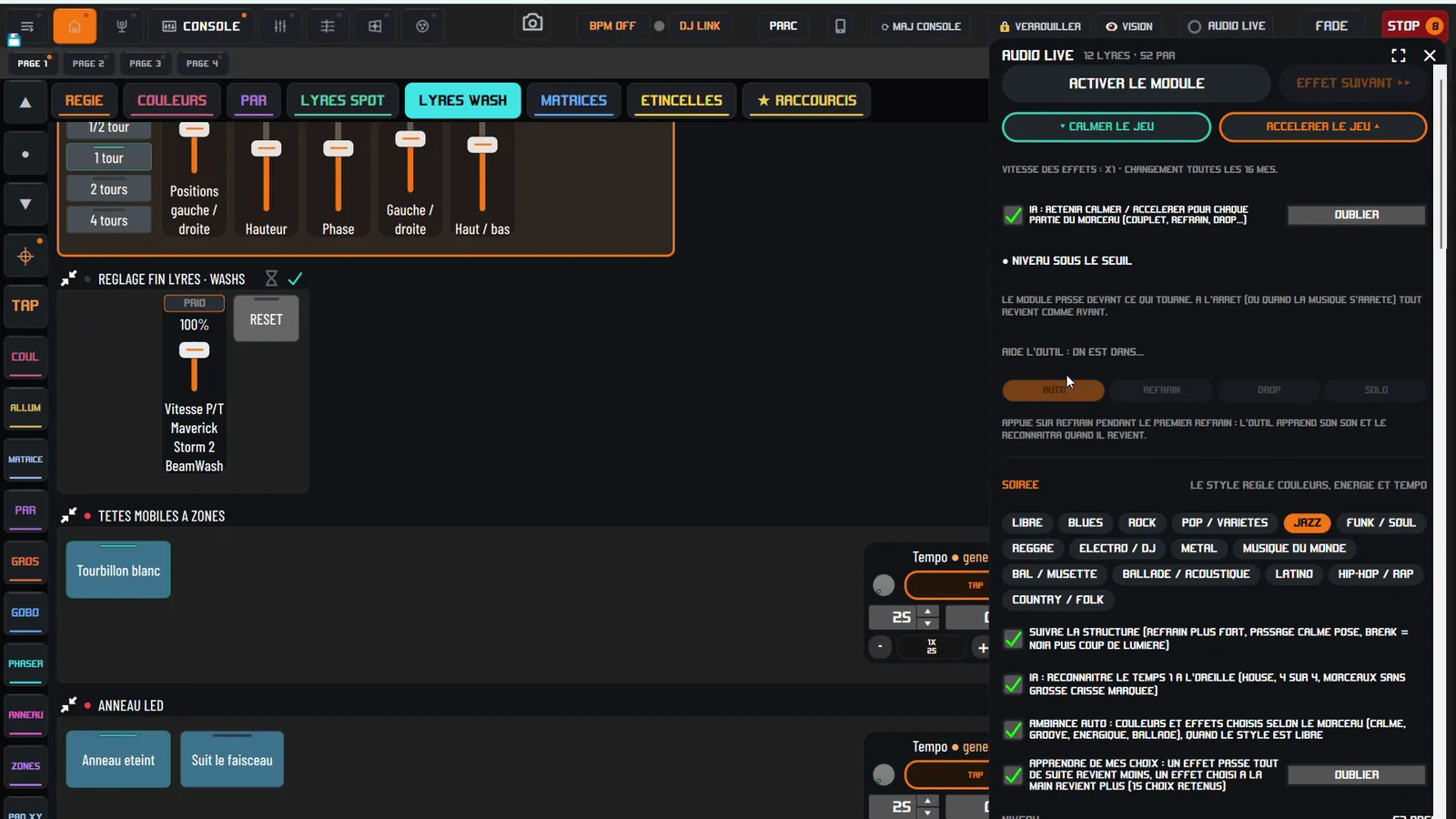
The Audio live tool listens to the sound, finds the BPM, recognizes the song structure and evolves the effects of your console: moving heads and PARs to the tempo, a stronger chorus, blackout on the break then a burst of light on the drop. It works with VirtualDJ as with any software or deck.
- Bring the sound into the computer: connect the booth or rec output of your controller (or mixer) to the computer's line input, or to a small USB sound card. As a fallback, the computer's microphone is enough to find the tempo.
- Choose that input in LWA Light: Inputs / outputs tab, or the Change input button in the Audio live tool.
- Set the level: play a track in VirtualDJ, the Audio live meter should move. Adjust the Music threshold if needed.
- Choose the music style (Electro / DJ, Pop, Funk / Soul… or Free) and tick Follow the structure.
- Turn the module on: "ACTIF · LA MUSIQUE PILOTE". Mix, the lighting follows.
During the night, CALMER LE JEU and ACCÉLÉRER LE JEU adjust the energy, and EFFET SUIVANT changes effect. All of it can also be controlled from the free remote on your phone, placed next to the controller. Spark machines never fire in audio live, and moving heads stay inside the XY PAD zone.
Prefer to launch your effects yourself? Keep only the AUTO TEMPO button on the TEMPO GÉNÉRAL dial: it hears the tempo in the sound and syncs all your effects to it, without touching anything else.
Method 2: MIDI Clock sent by VirtualDJ
VirtualDJ can send the master deck's BPM as MIDI Clock. On a single computer, you need a virtual MIDI port that links the two programs.
- Create a virtual MIDI port: on Windows, install loopMIDI (free) and create a port, for example "VDJ to LWA". On Mac, enable the IAC bus in Audio MIDI Setup.
- In VirtualDJ: Settings, Controllers section, right-click this port, then Midi Clock Output.
- In LWA Light: click the SYNC button in the top bar, choose MIDI CLOCK, then the same port under MIDI input.
- Check: play a track, VirtualDJ's BPM shows in the SYNC panel and the indicator lights up. All effects, chasers and audio live follow that tempo.
If the port doesn't appear, close and reopen both programs after creating the port. Don't send MIDI Clock to your DJ controller's port: keep a separate virtual port.
Which method to choose?
- You want to mix without thinking about the lighting: audio live. The lighting also follows the song structure, not just the tempo.
- You want an exact tempo and to launch your effects yourself: MIDI Clock, with your buttons via the mouse, a MIDI controller or the remote.
- Both together: MIDI Clock gives the tempo, audio live chooses the effects. It's the most precise.
One computer for both?
Yes. LWA Light has an eco mode designed to run on a small laptop without slowing the show. Keep VirtualDJ on its usual sound card, plug the DMX interface into another USB port, and do a full test at home before the gig. If your computer is borderline, a second PC (even an old one) dedicated to lighting solves it: audio live only needs the sound.
Frequently asked questions
Is LWA Light compatible with VirtualDJ?
Yes. It follows VirtualDJ by listening to the sound (audio live) or by receiving its MIDI Clock, on Windows as well as on Mac. The fixtures are controlled by LWA Light, through a DMX-USB interface or over Art-Net.
Do I have to program scenes in advance?
No. The assistant builds the console from your fixtures, with colors, PAR effects, moving head movements, strobes and blackout. Audio live then uses it by itself.
And with another DJ software?
Audio live works with all software and all decks, since it listens to the music. Software that sends MIDI Clock links up like VirtualDJ, and networked Pioneer DJ decks go through Pro DJ Link.
Can I try before buying?
Yes: 30 days with all the tools and live DMX output. After that, one lifetime licence, all included: €189 incl. VAT as a launch offer.
Try LWA Light with VirtualDJ
30 days free, all tools open, on Windows, Mac or Linux.
Read also
- DMX software for DJs: which one to choose and how to get started
- Lighting for DJs
- Freestyler alternative: simpler DMX software
VirtualDJ is software by Atomix Productions, independent of LWA Light. VirtualDJ settings checked on 23 November 2026 in its online manual.